# 两栏布局(左侧固定宽,右侧自适应)
<div class="container">
  <div class="left"></div>
  <div class="right"></div>
</div>
/* 方法一:左侧浮动,右侧负margin值 */
.left {
    width: 100px;
    height: 200px;
    float: left;
    background-color: red;
}
.right {
    width: auto;
    height: 200px;
    margin-left: 100px;
    background-color: black;
}
/* 方法二:左侧浮动,右侧设置 overflow: hidden,触发BFC */
/* BFC的区域不会与浮动元素发生重叠,所以两侧就不会发生重叠 */
.left {
    width: 100px;
    height: 200px;
    float: left;
    background-color: red;
}
.right {
    height: 200px;
    overflow: hidden;
    background-color: black;
}
/* 方法三:Flex 布局 */
.container {
    display: flex;
    margin: 100px;
}

.left {
    width: 100px;
    height: 200px;
    background-color: red;
}
.right {
    height: 200px;
    flex: 1;
    background-color: black;
}
/* 方法四:定位 父级元素设置为相对定位。左边元素设置为absolute定位,右边元素的margin-left的值设置为100px */
.container {
    position: relative;
    margin: 100px;
}

.left {
    width: 100px;
    height: 200px;
    position: absolute;
    background-color: red;
}
.right {
    height: 200px;
    margin-left: 100px;
    background-color: black;
}
/* 方法四:定位 父级元素设置为相对定位,右边绝对定位 */
.container {
    position: relative;
    margin: 100px;
}

.left {
    width: 100px;
    height: 200px;
    background-color: red;
}
.right {
    height: 200px;
    position: absolute;
    left: 100px;
    top: 0;
    right: 0;
    bottom: 0;
    background-color: black;
}

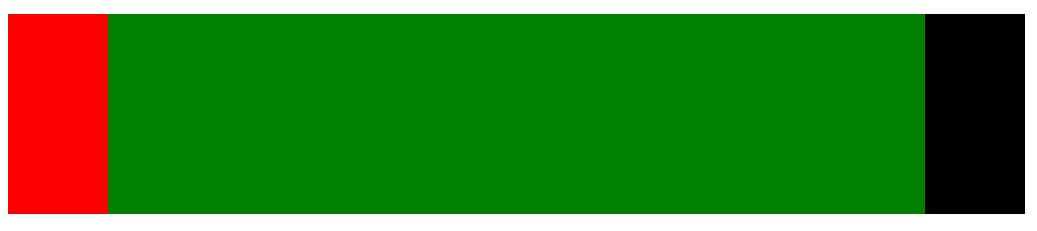
# 三栏布局(左右两栏宽度固定,中间自适应的布局)
<div class="container">
  <div class="left"></div>
  <div class="center"></div>
  <div class="right"></div>
</div>
/* 方法一:浮动 左右固定大小,并浮动。中间设置的margin值 */

>>> 注意:这种方式,中间一栏的dom必须放到最后。优先设置浮动!<<<

.container {
    margin: 100px;
}

.left {
    float: left;
    width: 100px;
    height: 200px;
    background-color: red;
}
.right {
    float: right;
    width: 100px;
    height: 200px;
    background-color: black;
}
.center {
    height: 200px;
    margin: 0 100px;
    background-color: green;
}
/* 方法二:定位 左右绝对定位,中间设置margin值 */
.container {
    position: relative;
    margin: 100px;
}

.left {
    width: 100px;
    height: 200px;
    position: absolute;
    background-color: red;
}
.right {
    width: 100px;
    height: 200px;
    right: 0;
    top: 0;
    position: absolute;
    background-color: black;
}
.center {
    height: 200px;
    margin: 0 100px;
    background-color: green;
}
/* 方法三:Flex 布局 */
.container {
    display: flex;
    margin: 100px;
}

.left {
    width: 100px;
    height: 200px;
    background-color: red;
}
.right {
    width: 100px;
    height: 200px;
    background-color: black;
}
.center {
    height: 200px;
    flex: 1;
    background-color: green;
}
# 水平垂直居中的实现
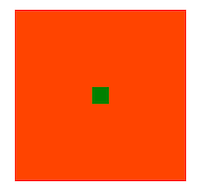
/* 方法一:绝对定位 + transform */
.container {
    margin: 100px auto;
    position: relative;
    width: 500px;
    height: 500px;
    background-color: #f40;
}

.main {
    position: absolute;
    width: 50px;
    height: 50px;
    top: 50%;
    left: 50%;
    transform: translate(-50%, -50%);
    background-color: green;
}
/* 方法二:绝对定位 四个方向的值都为0,并将margin设置为auto */

>>> 该方法适用于盒子有宽高的情况 <<<

.container {
    margin: 100px auto;
    position: relative;
    width: 500px;
    height: 500px;
    background-color: #f40;
}

.main {
    position: absolute;
    width: 50px;
    height: 50px;
    top: 0;
    left: 0;
    right: 0;
    bottom: 0;
    margin: auto;
    background-color: green;
}
/* 方法:Flex 布局 */

.container {
    margin: 100px auto;
    width: 500px;
    height: 500px;
    display: flex;
    align-items: center;
    justify-content: center;
    background-color: #f40;
}

.main {
    width: 50px;
    height: 50px;
    background-color: green;
}
# 实现一个三角形
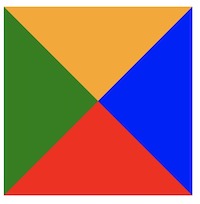
原理:将 width 和 height 设置为0,再设置border
.div {
    width: 0;
    height: 0;
    border: 100px solid;
    border-color: orange blue red green;
}
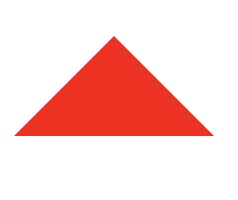
/* 利用 border 画一个红色三角 */
div {
	width: 0;
	height: 0;
	border-bottom: 50px solid red;
	border-right: 50px solid transparent;
	border-left: 50px solid transparent;
}
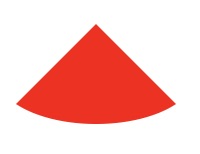
# 实现一个扇形
在三角形的基础上,加上圆角样式,border-radius: 100%
div {
	width: 0;
	height: 0;
	border-bottom: 50px solid red;
	border-right: 50px solid transparent;
	border-left: 50px solid transparent;
  border-radius: 100%;
}
# 根据边框和圆角设置有趣的图形
<!-- html 结构 -->
<div class="box">
  <div class="box1"></div>
  <div class="box2"></div>
</div>
/* WIFI */
div[class*="box"] {
	border-top: 50px solid red;
	border-right: 50px solid transparent;
	border-left: 50px solid transparent;
  border-radius: 100%;
}
.box {
  position: relative;
  width: 300px;
  height: 300px;
  margin: 100px;
}
.box1 {
  position: absolute;
  width: 150px;
  height: 190px;
  top: 0;
  left: 0;
  right: 0;
  bottom: 0;
  margin: auto;
}
.box2 {
  position: absolute;
  width: 30px;
  height: 70px;
  top: 0;
  left: 0;
  right: 0;
  bottom: 0;
  margin: auto;
  /* 高宽为 0,box2 有点椭圆,这里设置是为变的圆一点 */
  transform: scale(0.5);
  background-color: red;
}

/* 结构同上, css 同上,一下是修改部分 */

div[class*="box"] {
	border-top: 50px solid red;
  /* 去掉左右 border 设置 */
  border-radius: 100%;
}
.box2 {
  /* 高宽修改,去掉 transform */
  width: 50px;
  height: 0;
}

/* 将 border-left 注释 */
div[class*="box"] {
	border-top: 50px solid red;
	border-right: 50px solid transparent;
	/* border-left: 50px solid transparent; */
  border-radius: 100%;
}
.box {
  position: relative;
  width: 300px;
  height: 300px;
  margin: 100px;
}
.box::after {
  content: '';
  position: absolute;
  width: 30px;
  height: 30px;
  top: 20px;
  right: -17px;
  border-radius: 50%;
  background-color: red;
}
.box1 {
  position: absolute;
  width: 150px;
  height: 190px;
  top: 0;
  left: 0;
  right: 0;
  bottom: 0;
  margin: auto;
}
.box1::after {
  content: '';
  position: absolute;
  width: 20px;
  height: 20px;
  top: 5px;
  right: -30px;
  border-radius: 50%;
  background-color: red;
}
.box2 {
  position: absolute;
  top: 30px;
  left: 0;
  right: 50px;
  bottom: 0;
  margin: auto;
  transform: scale(0.22);
}

.box2::after {
  content: '';
  position: absolute;
  width: 30px;
  height: 30px;
  top: 10px;
  right: -35px;
  border-radius: 50%;
  background-color: red;
}

# 让 Chrome 字体小于 12px
p {
    font-size: 10px;
    -webkit-transform: scale(0.8); // 0.8是缩放比例
}
# 单行/多行文本省略样式
/* 单行文本 */
p {
    overflow: hidden;
    text-overflow: ellipsis;
    white-space: nowrap;
}
/* 多行文本 */
p {
    -webkit-line-clamp: 2;
    display: -webkit-box;
    -webkit-box-orient: vertical;
    overflow: hidden;
    text-overflow: ellipsis;
}